Windows system-tray utility that saves named monitor configurations — resolution, rotation, and position — and switches between them with one click
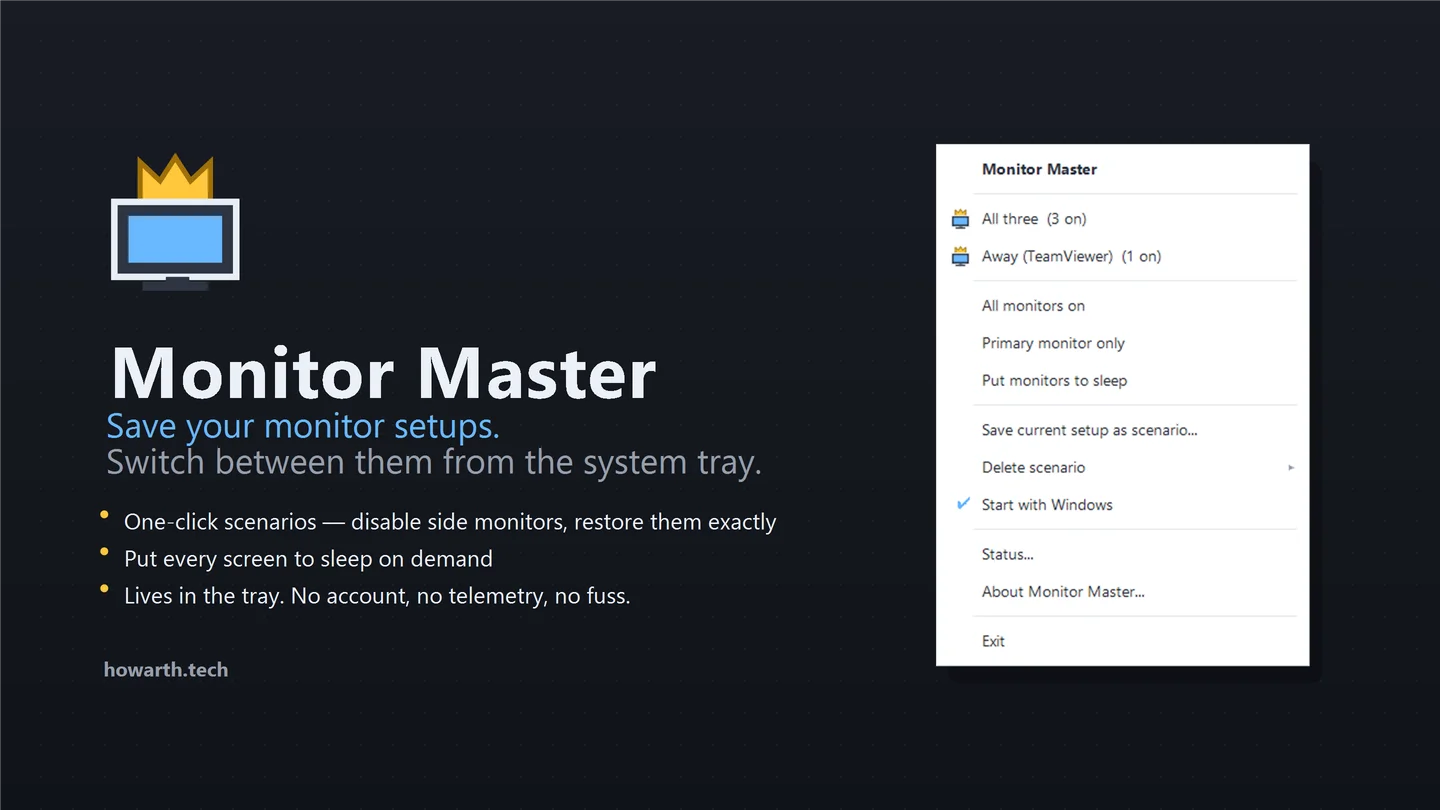
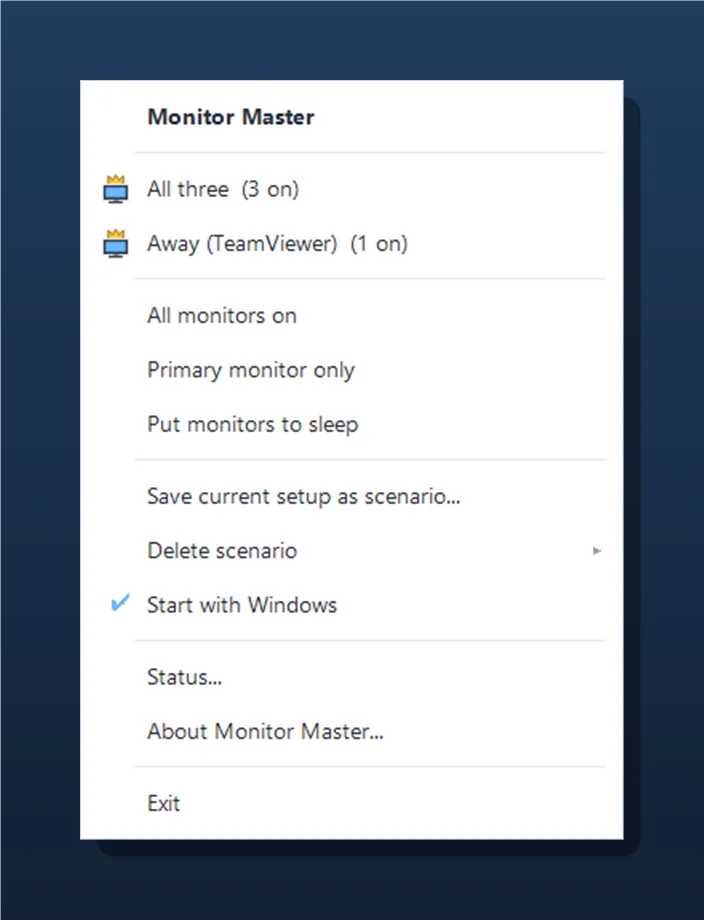
Monitor Master is a Windows system-tray utility that saves named monitor configurations — “scenarios” — and switches between them with one click. Turn off secondary monitors before a remote-desktop session, put every screen to sleep on demand, and restore the full layout — resolution, rotation, and position — exactly as it was, from the tray.
It came out of a concrete annoyance: dropping to a single screen before remote-controlling a PC from away, then putting the multi-monitor setup back without hand-fixing every display. There is no account, no telemetry, and no network access; it installs per-user with no administrator rights and removes cleanly from Settings › Apps.
Built by Howarth Tech Solutions. Monitor Master bundles MultiMonitorTool (© Nir Sofer, NirSoft), redistributed unmodified under its freeware licence — not affiliated with or endorsed by NirSoft. “TeamViewer” is a trademark of its owner; no affiliation.
A native Windows desktop app built entirely in PowerShell 5.1, using Win32 interop via embedded C# types to drive display topology and the Windows Forms tray UI.
All Win32 display enumeration runs inside an embedded C# type rather than directly in PowerShell 5.1 — because PowerShell mis-marshals DISPLAY_DEVICE when passed by [ref]. Monitors are tracked by Short Monitor ID, not \\.\DISPLAYn, which Windows reassigns across a disable/enable cycle. The uninstaller self-relocates to %TEMP% so it can delete its own directory.
Everything you need to manage a multi-monitor Windows setup without touching Display Settings.
%LOCALAPPDATA% with no administrator rightstools/verify.ps1 parses every script and asserts the tray↔engine action contractThe engineering that turns a scripting stack into a polished, installable Windows product.
Monitor enumeration and display-mode changes run through an embedded C# type (Add-Type) rather than directly in PowerShell, because PowerShell 5.1 mis-marshals DISPLAY_DEVICE by [ref]. Enable/disable is delegated to NirSoft MultiMonitorTool for a documented reason: the native ChangeDisplaySettingsEx path can disable a monitor but cannot reliably re-enable it, and the modern SetDisplayConfig topology path fails the same way.
Monitors are tracked by Short Monitor ID rather than \\.\DISPLAYn, which Windows reassigns when a monitor is disabled and re-enabled. A disabled monitor reports a blank ID, so the engine enables by index and disables by ID — then reapplies the saved layout. A multi-pass enable loop verifies each panel actually returned, and a never-leave-zero-displays safety net turns everything back on rather than blanking the machine.
The app icon is drawn procedurally in System.Drawing at multiple sizes and written to a hand-assembled multi-size .ico using the classic DIB ICONDIR binary format — because GDI+ cannot decode PNG-in-ICO at runtime. This avoids a dependency on external icon editors or design tooling.
The installer copies files to %LOCALAPPDATA%, writes an HKCU Settings › Apps registration, and requires no administrator rights. The uninstaller self-relocates to %TEMP% so it can delete its own directory without locking itself. A bundled third-party dependency (MultiMonitorTool) is included strictly to the letter of its freeware licence.
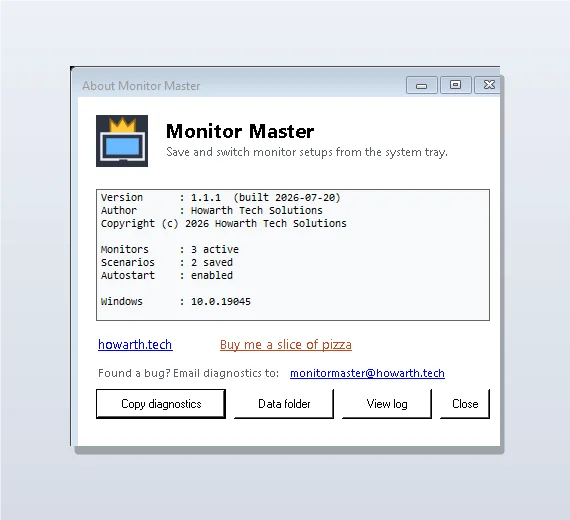
tools/verify.ps1 parses every script, asserts the tray↔engine action contract, statically checks that no dialog control overflows its form, and smoke-runs a read-only display enumeration against real hardware. Nothing ships without passing the gate. This is the same practice applied to client deliverables — the verification step is first-class, not an afterthought.
Native Windows desktop engineering delivered in a scripting stack — Win32 interop, display-topology control, and a polished WinForms tray UX — taken all the way to a real, installable product: a drawn app icon, a Settings › Apps entry, a bundled dependency handled correctly under its licence, a built-in diagnostics path, and an automated check that gates every change. It shows the ability to carry a small personal utility through to a distributable, support-ready release rather than leaving it as a script.
Monitor Master shows what a small Windows tool looks like when it’s built as a proper product — Win32 interop, real packaging, a clean install/uninstall path, and an automated verification gate. If you need a custom desktop utility, internal tool, or Windows automation built to the same standard, let’s talk.
Monitor Master is a Windows 10/11 system-tray utility that saves named monitor configurations — resolution, rotation, and position — and switches between them with one click. It installs per-user with no administrator rights and has no telemetry or network access.
No. Monitor Master bundles MultiMonitorTool (© Nir Sofer, NirSoft), redistributed unmodified under its freeware licence, but is not affiliated with or endorsed by NirSoft.
Yes — native Windows desktop apps, Win32 interop, and PowerShell-based tooling are within scope. See our software development service to discuss your needs.
Tell us what you have in mind and we'll come back with an approach and a flat quote — no obligation.